05. How Can We Cheat?
Since we now know that in order to bake lights for a game object it must be static, i.e. not move during gameplay, we should figure out how to tell Unity that a game object will not move.
To do that, we first select the game object in the scene hierarchy. In this case, we have selected the Apartment game object. Now, if you look at the top right of the Inspector, you will see a checkbox named Static:
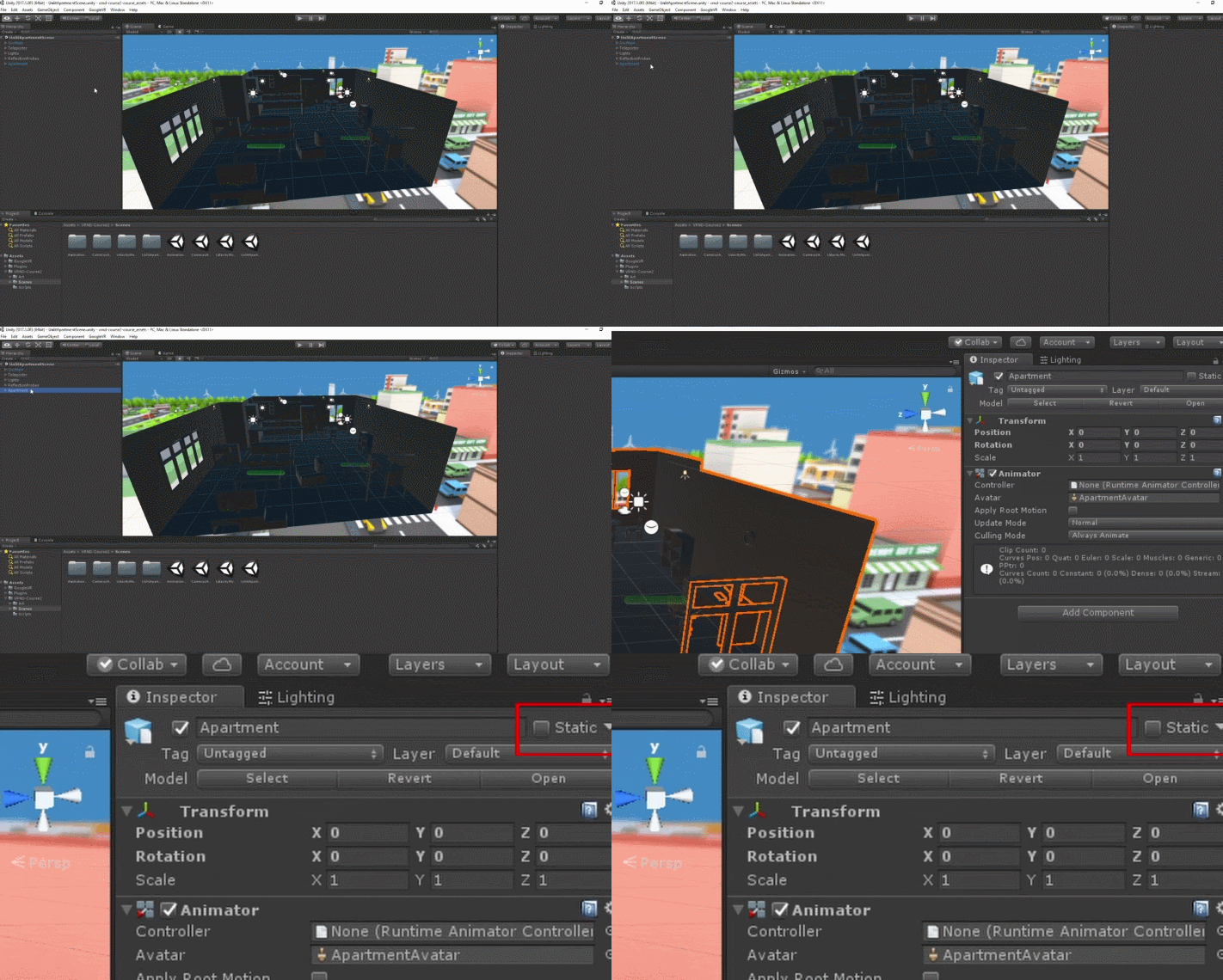
This is the property Unity uses to determine whether a game object is static or not.
As you can see, it is currently unchecked, so let’s enable it. When we do that, Unity asks if we want to apply this setting to all children. For this exercise, we don't need any of these child game objects to move, so let’s make them static as well by selecting the Yes, change children option:
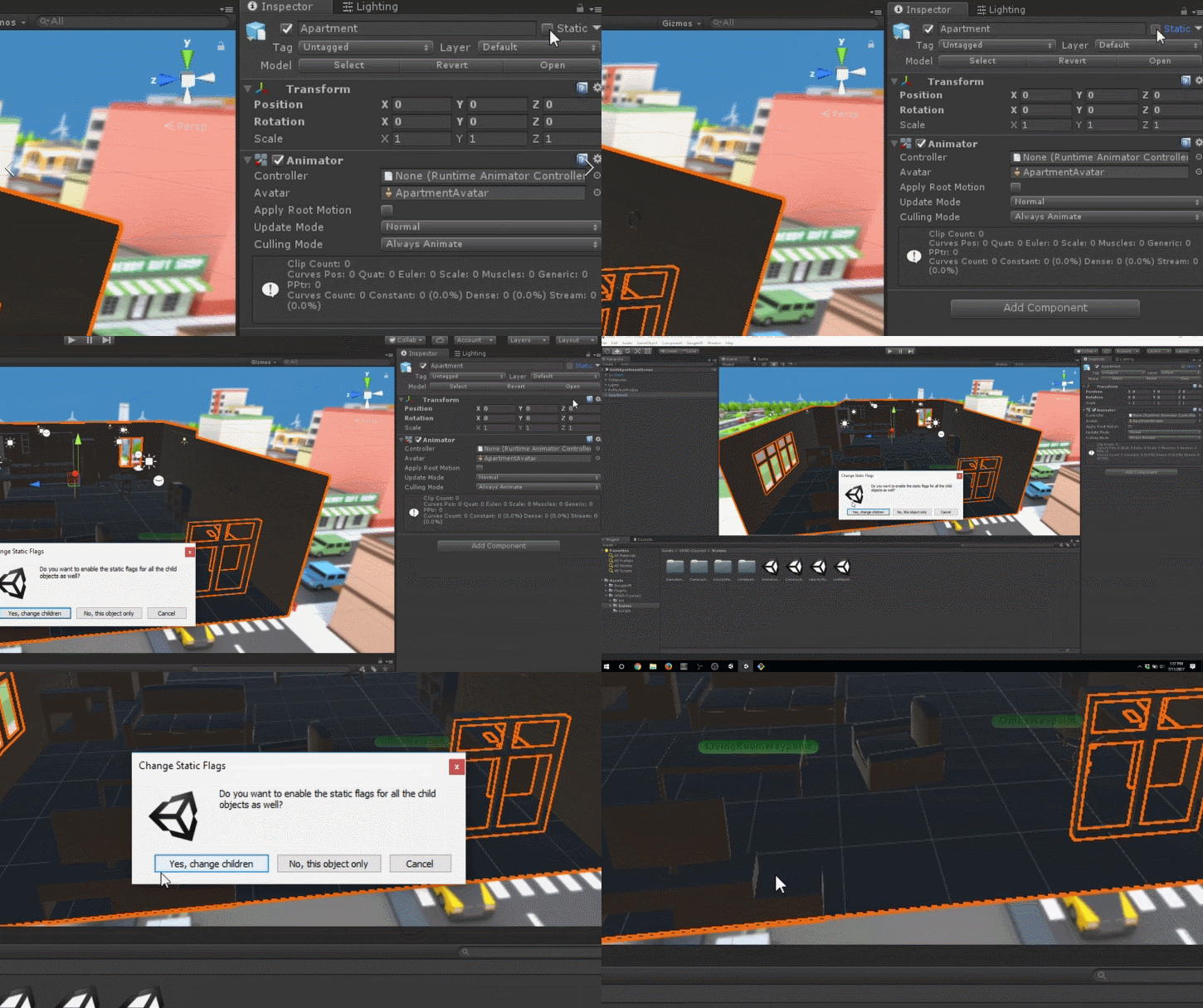
What we have actually done is enabled static not only for lighting but also for a lot of other properties. If we click the down arrow next to the Static checkbox, you will see that we can choose for which properties we want this game object to be static:
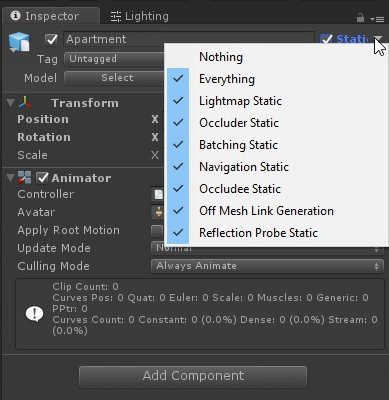
For example, there may be cases where you know a game object will be static for lighting purposes but not necessarily for navigation. You will usually tackle those on a case-by-case basis, but in general, if you know a game object is never going to move, then you can mark it static for everything.
Now, let’s move on to the lighting aspect. In case you didn't notice, we have actually already added in several area lights to the scene under the Lights game object. Feel free to tweak these as you desire.
Let's begin baking those lights. To do that, we go to Window > Lighting > Settings. Let’s dock that next to the Inspector, and then at the bottom, we hit Generate Lighting:
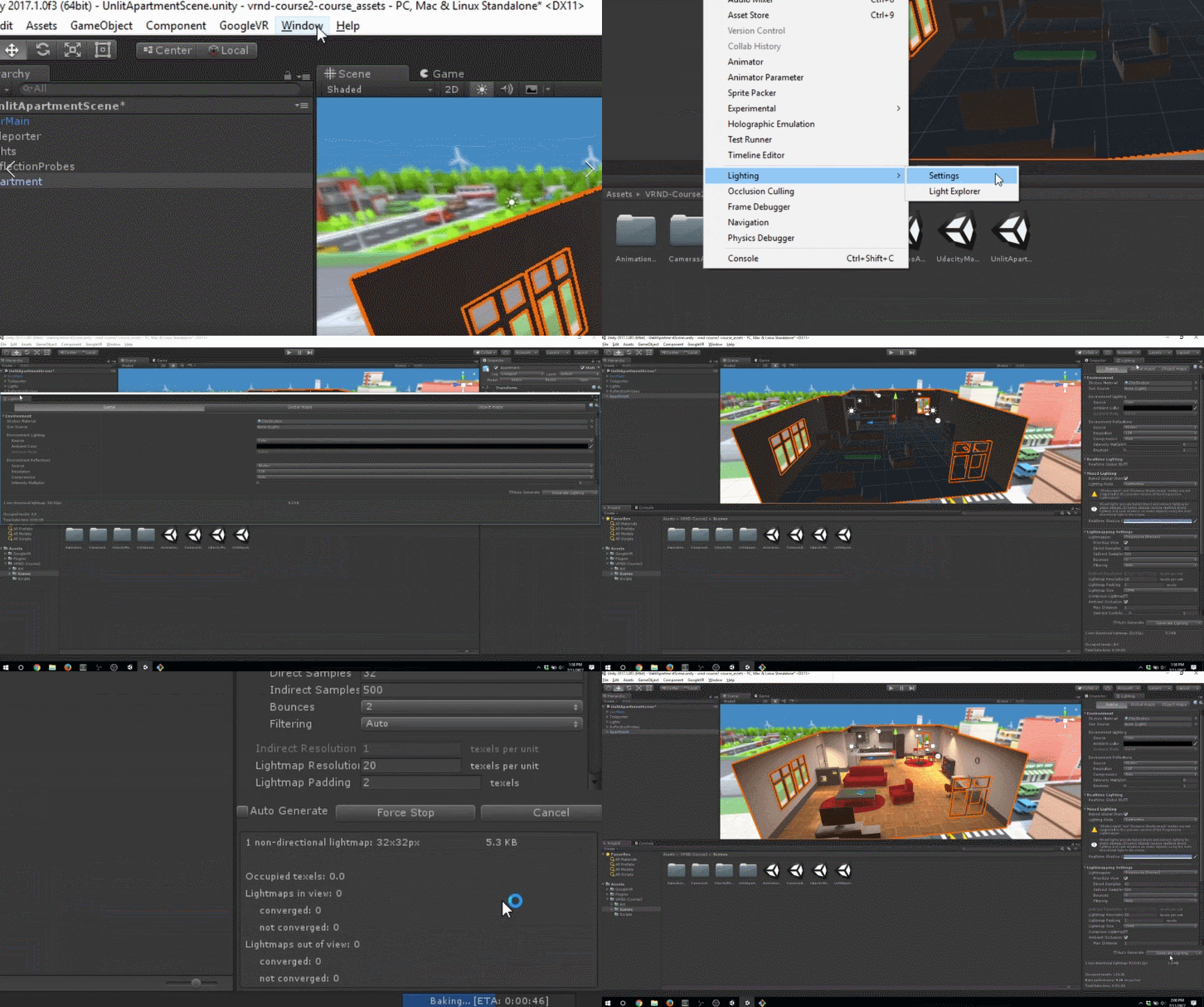
Give it some time, as this is a fairly complex calculation that can take a few minutes. Once it is done, you will have have a nicely lit apartment!
Project Preview:

Tip: Moving game objects in your scenes should never be marked static. Non-moving game objects should always be static.